Desktop API
The Desktop API enables desktop applications to securely connect to Halo Cloud with a different authentication workflow, which is based on the standard JWT protocol. This will enable integrators with desktop applications to avoid proxying all API requests through their cloud.
Much of the following content is similar to content found in the Halo Cloud Getting started page, but with additional sections for the Desktop API and its functionality.
API structure
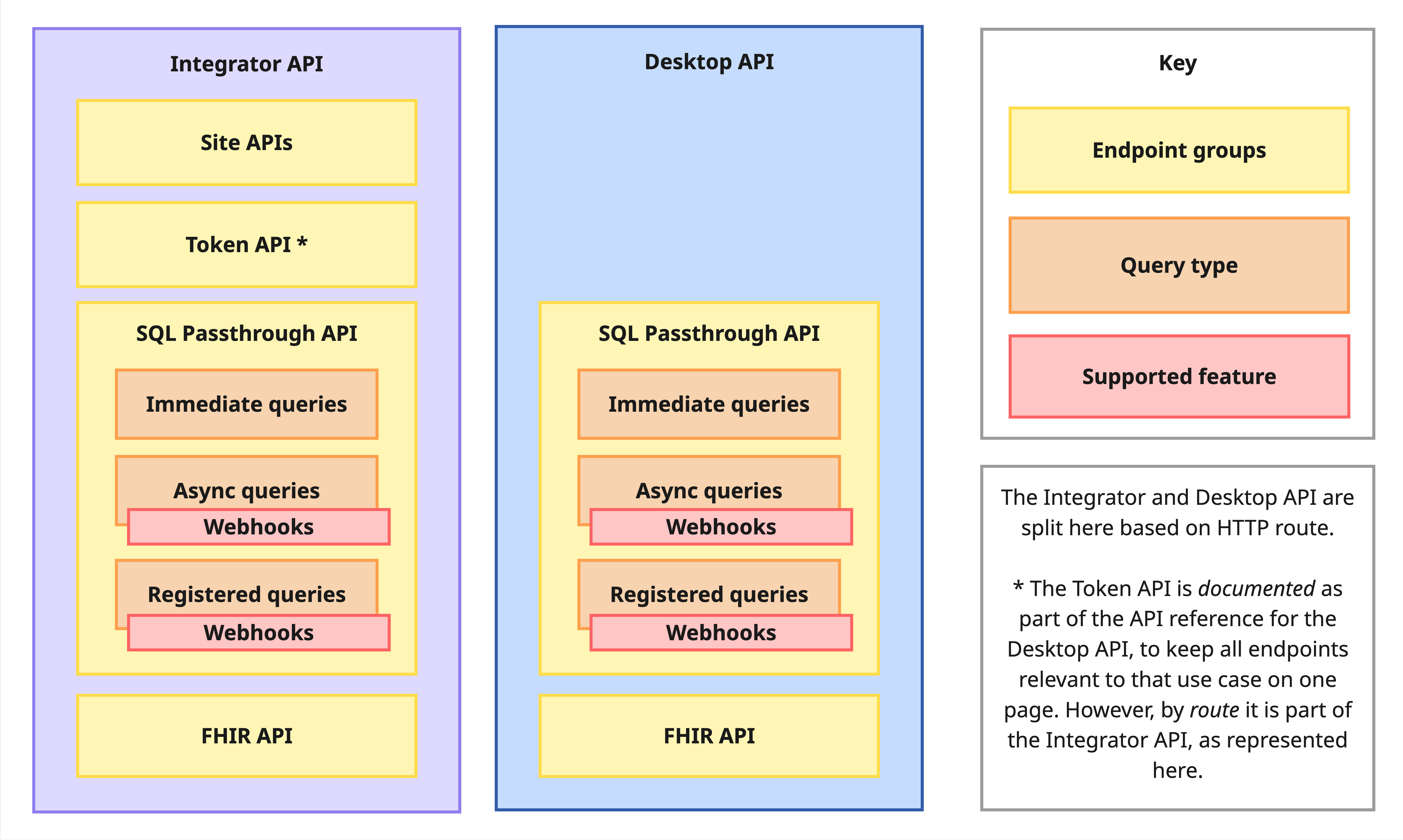
Halo Cloud contains two main APIs:
- Integrator API contains both admin and query endpoints, and is designed to be used by integrator's cloud services. This is the main API, and works for all supported PMSs.
- Desktop API contains a subset of endpoints and stronger auth mechanisms, and is designed to be used by on-premise applications.
The APIs have separate API references, available via the navigation menu on the left.
Within these APIs, there are multiple products and query groups:
- Site APIs for practice onboarding and metadata.
- Token API handles authentication for the Desktop API. Please note, the Desktop API token endpoint is documented in the Desktop API reference but is technically part of the Integrator API, based on its request URL and requirement for being called from an integrator's cloud, not on-premise applications.
- SQL Passthrough API contains endpoints for querying practices via SQL.
- FHIR API contains endpoints for querying practices via FHIR requests.
Finally, within the SQL Passthrough API are three types of queries:
- Immediate queries are for small, fast queries that are given priority in the queue. This type is recommended for real-time use cases.
- Registered queries are repeating queries that run at a specified frequency, and can be used to monitor for updates or new records. This type is recommended for polling use cases.
- Async queries are for any other queries, but are particularly useful for large queries due to their pagination and no size limit.
Webhook notifications are supported for both Registered and Async queries.
The API references will also list Registered queries as their own section. This is for ease of reading and because support for Registered Queries may also be added to the FHIR API in the future.
Integrator vs Desktop API
To clarify why both the Integrator and Desktop APIs exist:
-
Integrator API
- Designed for machine-to-machine communication, secured by modern cloud technologies.
- Leans on cloud security to allow for a simpler auth and query workflow.
- Includes admin and meta endpoints for retrieving practice metadata and Desktop API tokens.
- Allows queries across all practices an integrator is allowed to access.
-
Desktop API
- Designed for communication between Halo Cloud and insecure, on-premise applications.
- Ensures API keys are not stored on on-premise machines by requiring a more complex auth workflow.
- Does not include admin and meta endpoints. Only includes query endpoints.
- Restricts queries to a specific application at a specific practice.
- Supported by Zedmed and D4W.
Desktop API requirements
Integrators will need the following in order to use the Desktop API:
- An application that is installed on machines or devices other than the practice server which have the ability to query Halo Cloud. This is usually practice desktops.
- A secure mechanism for authenticating application users and/or desktop application instances.
- Please contact Support for further recommendations.
- A cloud presence capable of fetching, forwarding, and renewing Desktop API authorization tokens via the Integrator API.
- The ability to implement a token renewal workflow which, depending on use case, may involve either:
- Renewing tokens when they expire and an error is thrown, or
- Pre-emptively renewing tokens ahead of expiry to prevent service disruptions.
- A Halo Cloud subscription.
- A connection to the Integrator API (for auth).
- Approval from the relevant PMS to use the Desktop API.
API reference
The API reference for the Desktop API is available here.
Identifiers
The Desktop API requires a device identifier to identify the specific application connecting to Halo Cloud from a specific device, in addition to the Halo GUID used by all Halo Cloud APIs to identify the practice.
Two different devices at one practice running the same application (e.g. desktop machines or tablets) should not have the same Device ID.
Where Halo GUIDs are generated by Halo Cloud, Device IDs are generated by integrators. They are used to uniquely identify each desktop application at a practice, and device IDs are used with both authentication and query endpoints.
We recommend integrators ensure device IDs are secure values, and avoid enumerable or easily guessable formats such as ascending integers.
Authentication
Unlike the Integrator API, the Desktop API uses a combination of a Desktop API Token and a Device ID for authentication. An integrator's cloud must retrieve a Desktop API Token for a desktop application before the application can begin querying Halo Cloud, and the token must be renewed periodically as it expires after a set amount of time.
The Desktop API Token and Device ID must be supplied as headers on every request. See the Desktop API reference for the specifics. For example, sending an immediate query via the Desktop API. Details of the headers can be found for each endpoint under AUTHORIZATIONS.
The endpoint for retrieving a token is documented as part of the Desktop API reference, however it exists on the Integrator API route (/integrator/ not /desktop/) and uses Integrator API authentication. It should only be queried via an integrator's cloud servers, never a desktop application.
Token workflow
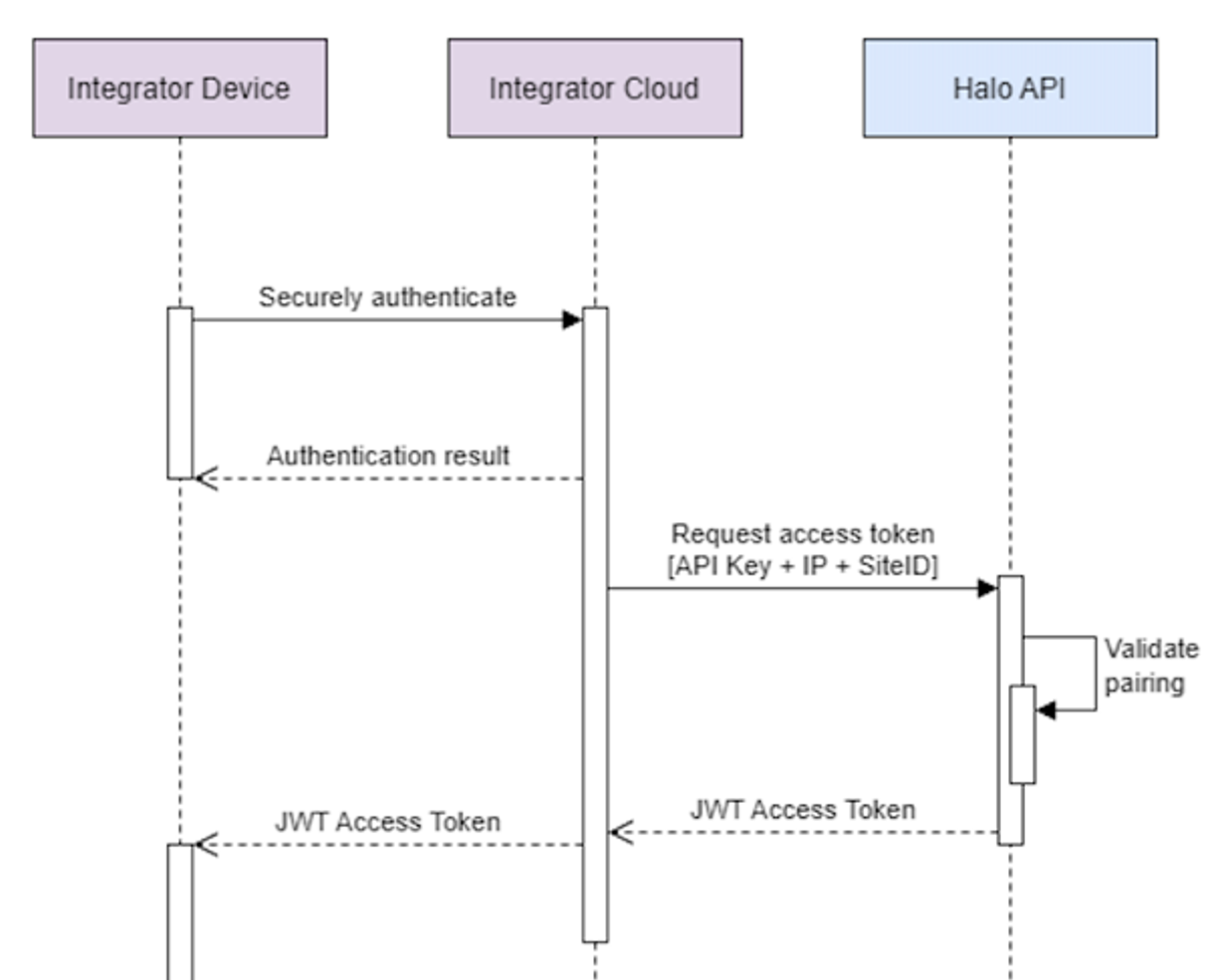
In order to onboard a new desktop application so that it can send queries to Halo Cloud:
- The integrator authenticates and onboards a new application. From that process, a Device ID should be assigned to the new application, which both the integrator's cloud and the desktop application should know.
- The integrator’s cloud requests a Desktop API Token from the Get token API endpoint, and includes in the request the practice's Halo GUID and the application's Device ID.
- Halo Cloud validates the identifiers and issues a token.
- The Integrator's cloud provides the Desktop API Token to the desktop application.
The Desktop API Token is then used by the desktop application when sending queries.
The token will need to be renewed periodically.
The expiry of a specific token can be found in the relevant token request response.
Token expiry error
If an application sends a query to Halo Cloud with an expired token, the error message will be:
Test queries
To test your connection to the Desktop API, you could:
- Onboard a test application, give it a Device ID, and request a Desktop API Token.
- Then, using the Desktop API, you could:
- Try one of the SQL Passthrough API query examples.
- Try one of the FHIR API query examples.