Troubleshooting Halo Link
This page details how troubleshoot various issues with Halo Link, including troubleshooting steps both for some specific issues and general steps to try.
Checklist
To streamline the troubleshooting and diagnostics process for the Halo Connect support team, we recommend working through these steps prior to reaching out:
- Check the practice's connectivity status using either the Integrator Portal or the Get site status endpoint.
- Ensure that the server meets Halo Link's requirements. If Halo Link is installed but can't connect, work through Connection issues.
- Check if any known issues are relevant to what you're experiencing. If there is a match, work through the suggested fix.
- Check for updates.
- Restart/start the service.
- Uninstall & reinstall Halo Link.
- Escalate to the Halo Connect Support team.
Known issues
Halo Link falsely flagged by antivirus or application control
Impact
Halo Link fails to install or update, or is incorrectly flagged by antivirus, application control, or zero-trust software. The product may be quarantined, removed, or blocked from starting.
Cause
Heuristic detection in some endpoint products can flag otherwise-legitimate installers that haven't yet built sufficient local reputation. Halo Link MSIs are Authenticode-signed by Halo Connect Pty Ltd (EV code-signing certificate); the signature provides a stable identity that most application control products can allow on.
We've worked with Sophos and ESET to add Halo Link to their known-good catalogues. We're aware the issue has affected customers on ThreatLocker, Airlock Digital, and Bitdefender.
Mitigation
See the Enterprise deployment page for the full treatment — code signing identity, the two allowlist rules that cover most blocks, and the update process tree.
For a quick path-based exclusion:
- Service install directory:
C:\Program Files (x86)\Halo Connect\Halo Link - Updater data directory:
C:\ProgramData\Halo Connect\Halo Link
If Halo Link has already been quarantined or removed, please contact Support. If your antivirus or application-control vendor is flagging Halo Link and you'd like us to engage with them directly, let us know via the same channel.
Troubleshooting
The following details general steps that can help when troubleshooting Halo Link issues.
Check for updates
See the full updating guide for information on auto-updates and other ways to manually run the Halo Link updater.
If updates are failing, ensure that your firewall and antivirus software are configured to allow Halo Link updates.
Restart/start
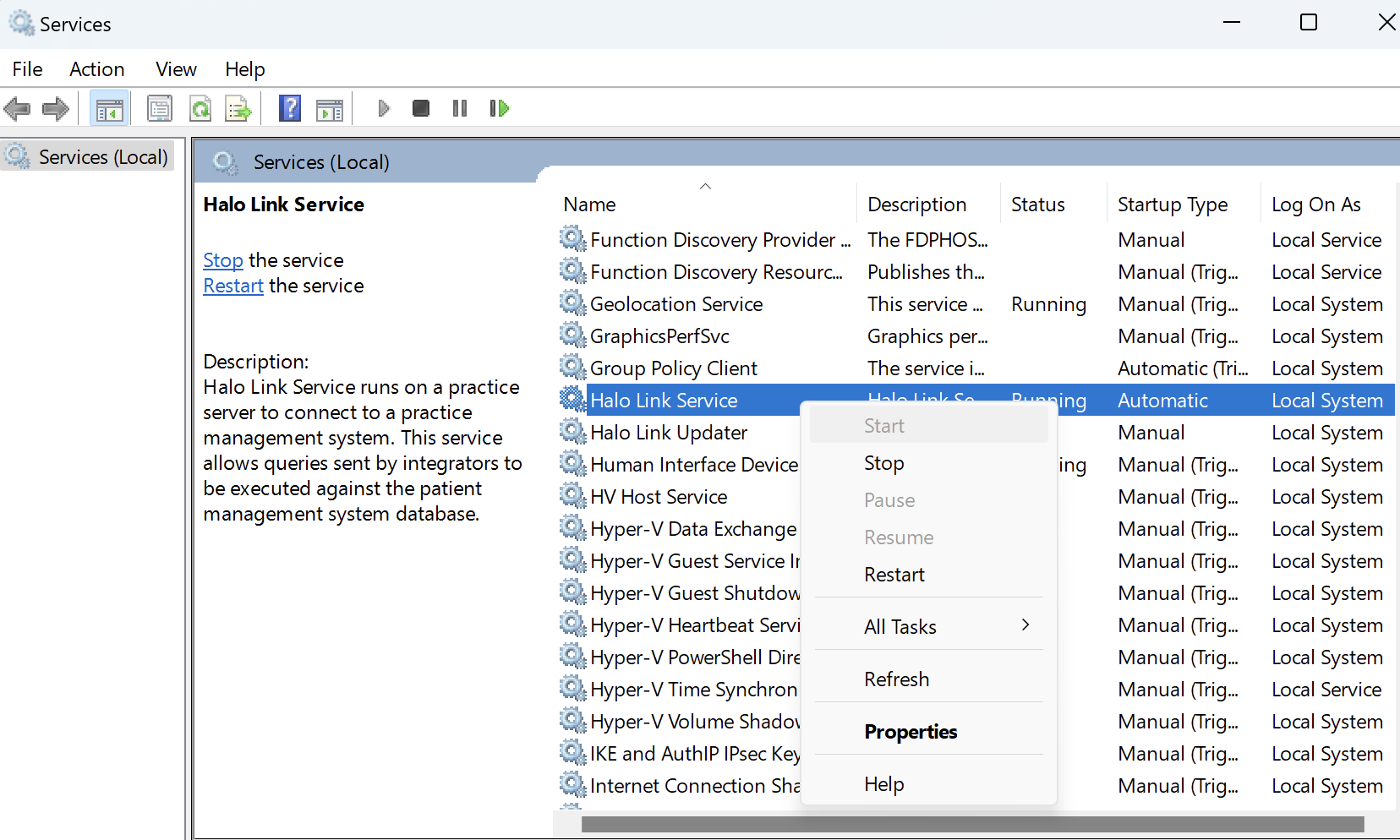
Open the Services directory, locate the "Halo Link Service" and right click, selecting the relevant option:
a) If the service is running, please "Restart" the service
Or
b) If the service is stopped, please "Start" the service
Uninstall Halo Link
Do not remove registry keys when uninstalling Halo Link unless specifically instructed by Halo Connect.
Uninstall Halo Link using the appropriate steps for your version of Windows, per the Microsoft documentation.
Install/reinstall Halo Link
See the Halo Link Installation guide for instructions on installing and reinstalling Halo Link.